WhatsApp Business Integration
Connect your WhatsApp Business account with Pravyon to send quotations, invoices, notifications, and customer updates directly from CRM.
Before You Start
Before connecting WhatsApp Business, you must have:
- Facebook Business account
- Business profile created inside Facebook Business
- WhatsApp Business account
WhatsApp Number Requirements
Before starting the integration, make sure you have a mobile number available for WhatsApp Business.
- A new mobile number is recommended for WhatsApp Business.
- WhatsApp may not allow numbers that are already registered with another WhatsApp account.
- If you want to use an existing WhatsApp number, you may need to permanently remove the existing WhatsApp account first.
- The selected mobile number will be used to send WhatsApp messages from Pravyon CRM.
Open WhatsApp Integration
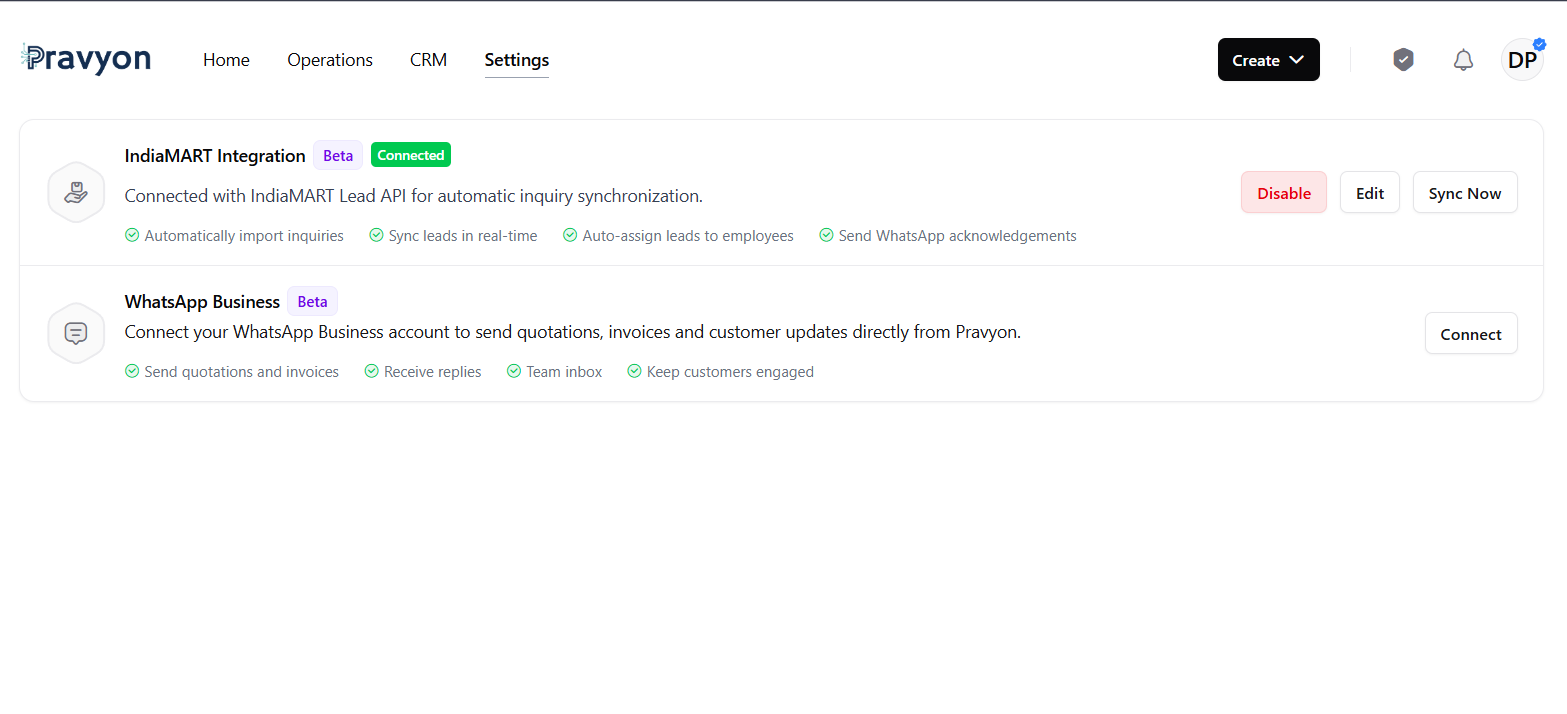
Go to Settings → Integrations and click on Connect button in WhatsApp Business section.
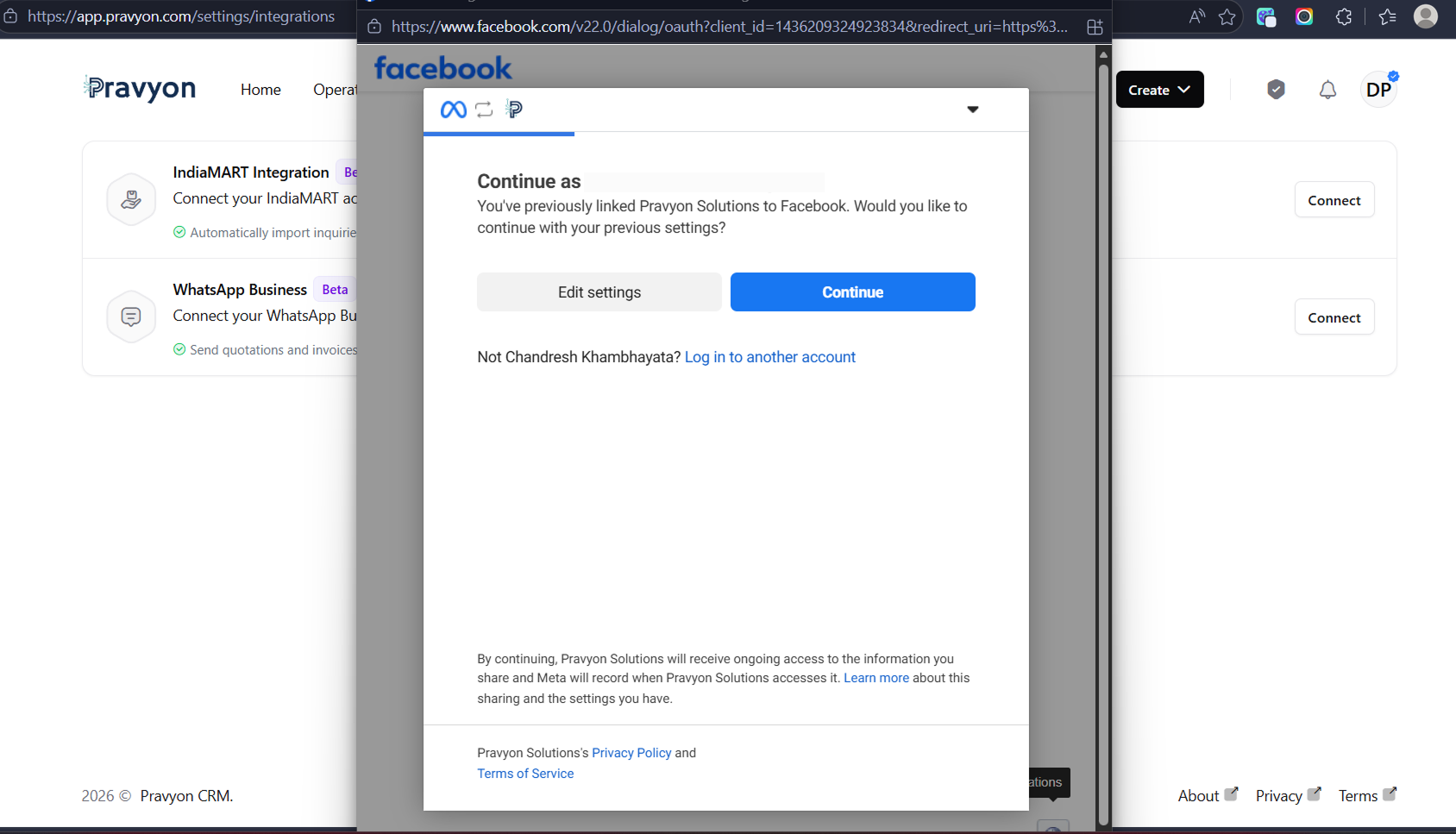
Facebook Login
After clicking Connect, Facebook login popup will appear.
Please login using the same Facebook account used in Facebook Business Manager.
It is recommended to use the main admin account.
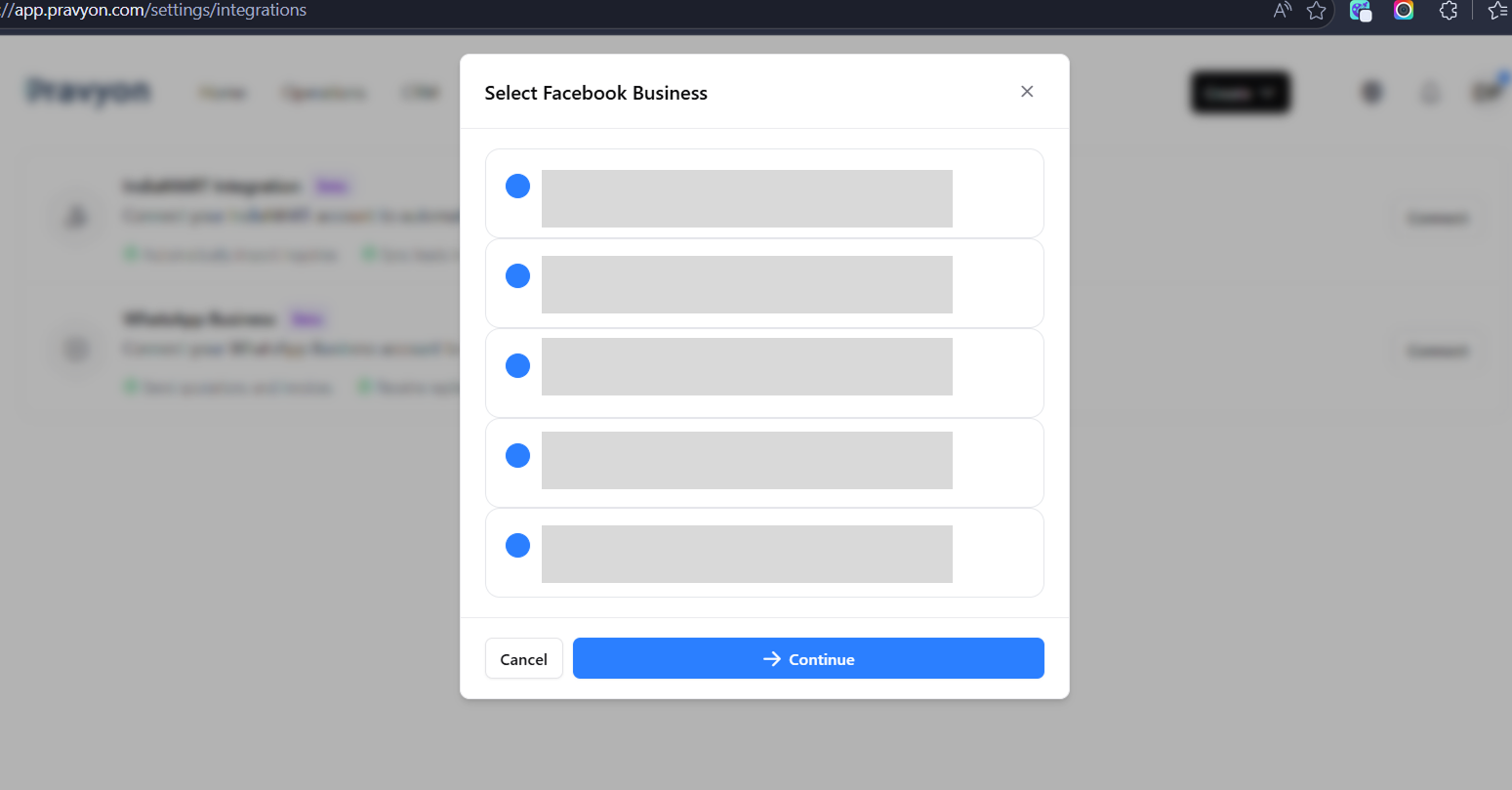
Select Facebook Business
If your Facebook account has multiple businesses, select the correct business profile.
Select WhatsApp Business Account
After selecting Facebook Business:
- Select WhatsApp Business account
- Select WhatsApp Business phone number
- Choose the number you want to send messages from Pravyon
- Complete all remaining Meta setup steps
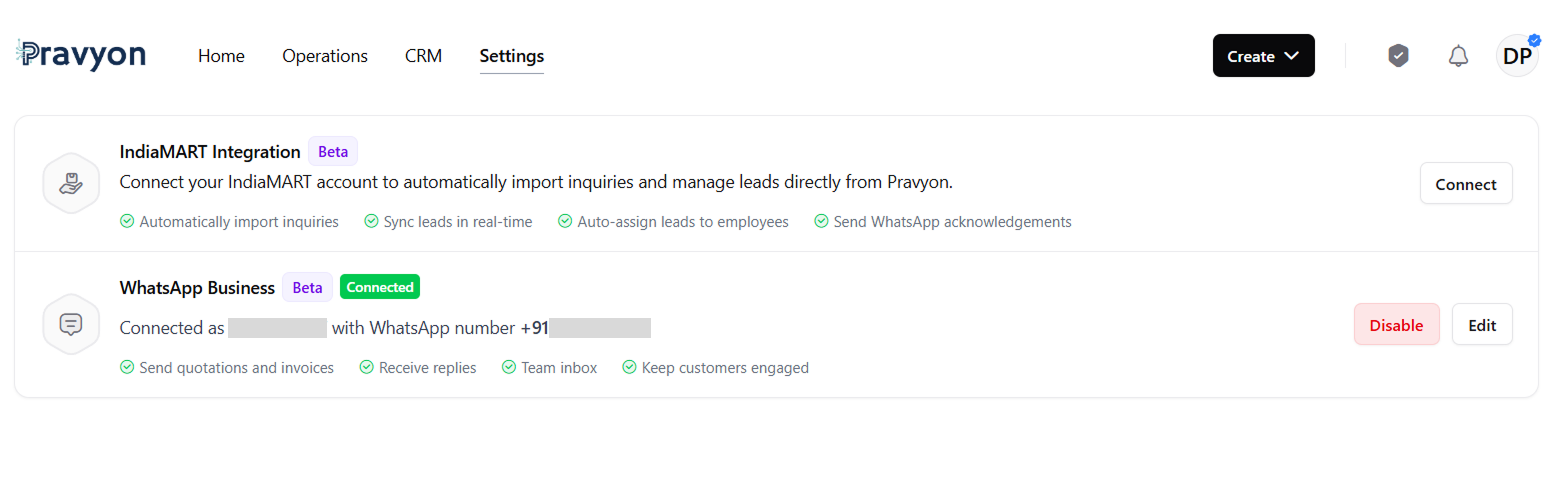
Connected Successfully
Once setup is completed, integration status will show as Connected.
Features Available After Connection
- Send quotations
- Send invoices
- Receive customer replies
- Team inbox support
- Send customer updates
- WhatsApp notifications from CRM
- Send automated notifications from CRM
- Send IndiaMART auto acknowledgements
- Receive tag notifications and workflow alerts
Important Information
- A new mobile number is recommended for WhatsApp Business integration. Existing WhatsApp numbers may require migration or account removal before they can be connected.
- WhatsApp message charges are billed directly by Meta (WhatsApp).
- All messaging charges will be deducted directly from the Debit Card or Credit Card configured in your WhatsApp Business account.
- Pravyon does not charge for WhatsApp conversations and is not responsible for any messaging fees deducted by Meta.
- Pravyon does not have access to your Debit Card, Credit Card, banking information, or billing details configured inside WhatsApp Business Manager.
- Message templates will be submitted after successful integration and configuration.
- Messages can only be sent after WhatsApp approves the templates.
- Template approval time is controlled by WhatsApp and may vary depending on the review process.
- Standard templates provided by Pravyon are included during the initial setup process.
- Any customization, modification, or creation of additional templates beyond the default templates may incur additional charges.
- Internet connectivity is required during the integration process.
- Changing the WhatsApp Business phone number after setup may require reconnecting the integration.
- Only WhatsApp-approved templates can be used for business-initiated conversations.
- WhatsApp message delivery is subject to Meta platform availability and WhatsApp policies.
- For template customization, billing questions, setup assistance, or integration support, please contact Pravyon support at hello@pravyon.com .