Sales Inquiry Management
Learn how to capture, manage, track, and convert sales inquiries across Web and Mobile applications with offline synchronization.
Sales Inquiry Management
The Sales Inquiry module in Pravyon CRM allows sales teams to record, monitor, track, and process customer inquiries coming from diverse acquisition channels into one centralized platform.
Available across both the Web Application and Mobile Application, the module ensures sales representatives can capture customer inquiries anytime, anywhere—even without an active internet connection.
Qualified inquiries can be seamlessly converted into main CRM Leads with complete history, product interest, follow-up schedules, and discussion notes preserved intact.
Purpose & Key Benefits
The Sales Inquiry module serves as the primary entry point for prospective client interactions before they become qualified CRM leads.
- Centralized Capture: Consolidate inquiries from trade expos, website forms, Google Ads, IndiaMART, WhatsApp, phone calls, and field visits.
- Field Mobility: Empower on-field executives to log inquiries instantly using the mobile application with offline support.
- No Lost Leads: Ensure every inquiry is assigned to a sales team member with clear priorities and automated follow-up reminders.
- Smooth Conversion: Convert qualified inquiries directly to full CRM Leads with a single click, eliminating manual data re-entry.
Navigation & How to Access
Accessing the Sales Inquiry module across Web and Mobile applications:
-
Web Application:
From the main sidebar navigation, navigate to CRM → Sales Inquiry → Inquiries to open the inquiry management console. To manage acquisition channels and event sources, go to CRM → Sales Inquiry → Sources. -
Mobile Application:
Open the Pravyon Mobile App, and tap the Sales Inquiries metric card on the Home dashboard or navigate via the quick navigation bar to open the Mobile Sales Inquiries screen.
Sales Inquiry Sources (Web Application Only)
Sales Inquiry Sources represent the acquisition channels, trade exhibitions, digital marketing campaigns, or partner networks through which potential client inquiries are captured.
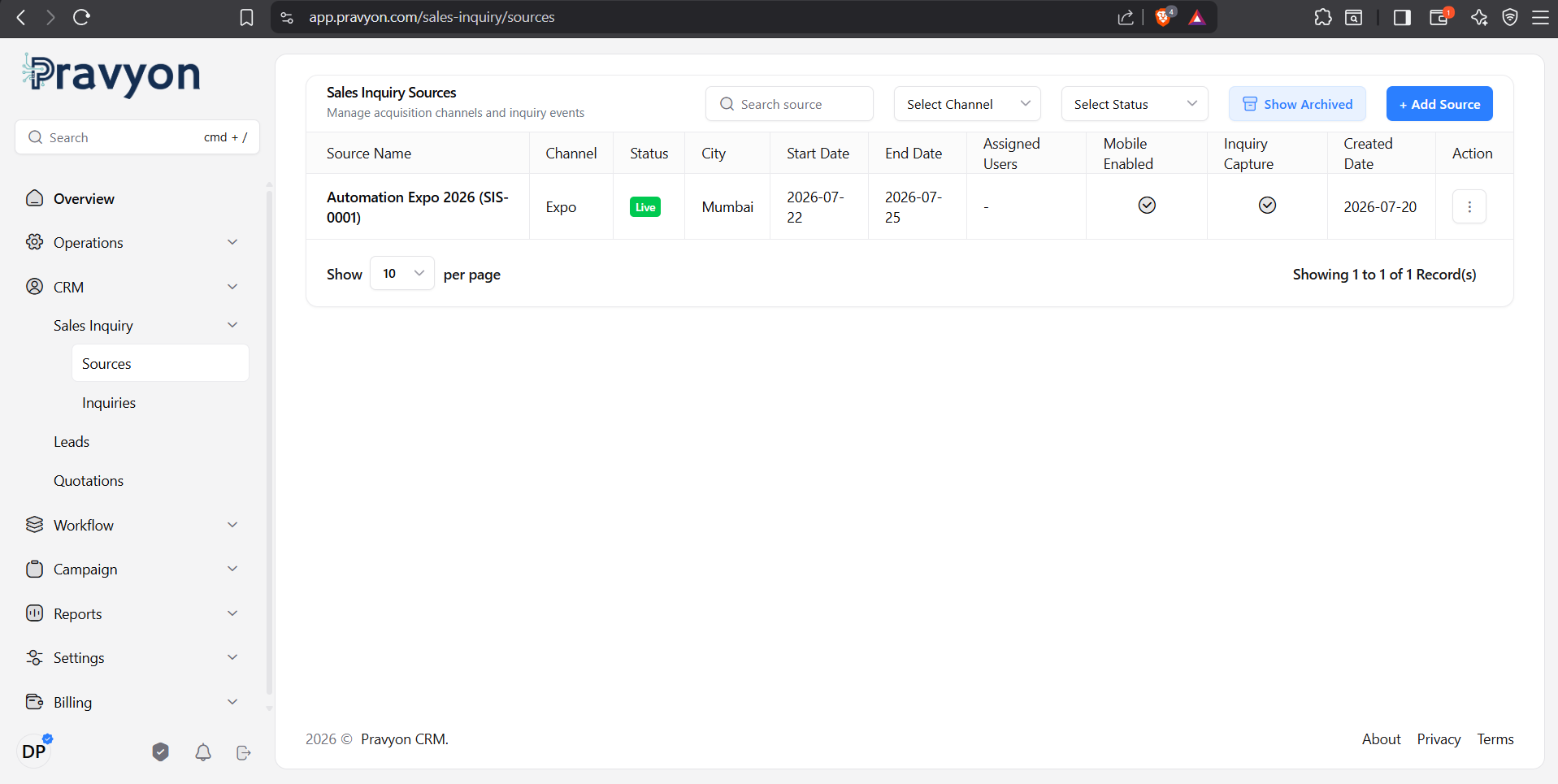
Sales Inquiry Sources List
The Sources table displays all configured acquisition channels and event sources with the following information:
-
Source Name: Name of the channel or event along with its auto-generated Source Code (e.g.,
Automation Expo 2026 (SIS-0001)). - Channel: Acquisition category (e.g., Expo, Website, Facebook, Instagram, Google Ads, IndiaMART, WhatsApp, Referral, Walk-in, Phone Call, Dealer Meet, Architect Meet, Builder Meet, Email Campaign, Cold Calling, Other).
- Status Badge: Event/Channel lifecycle stage (Draft, Upcoming, Live, Completed, Cancelled, Archived).
- City & Location: Event city or geographical target area.
- Start & End Date: Duration for trade expos or campaign active periods.
- Assigned Users: Sales representatives assigned to capture or handle inquiries from this source.
- Mobile Enabled: Indicates whether field executives can select this source in the Pravyon Mobile App.
- Inquiry Capture: Indicates whether active inquiry logging is enabled for this source.
- Created Date: Date when the source record was configured in the system.
- Action Menu: Quick access options to View, Edit, Archive, or Delete.
Source Search & Filtering
- Search Bar: Filter sources instantly by typing the source name, code, or city.
- Select Channel Filter: Filter by specific acquisition channel (e.g., Expo, IndiaMART, WhatsApp).
- Select Status Filter: Filter by status (Draft, Upcoming, Live, Completed, Cancelled).
- Show Archived Toggle: Switch between Active and Archived sources.
Creating a Sales Inquiry Source (+ Add Source Drawer)
Click the + Add Source button at the top right of the Sources page to open the configuration drawer.
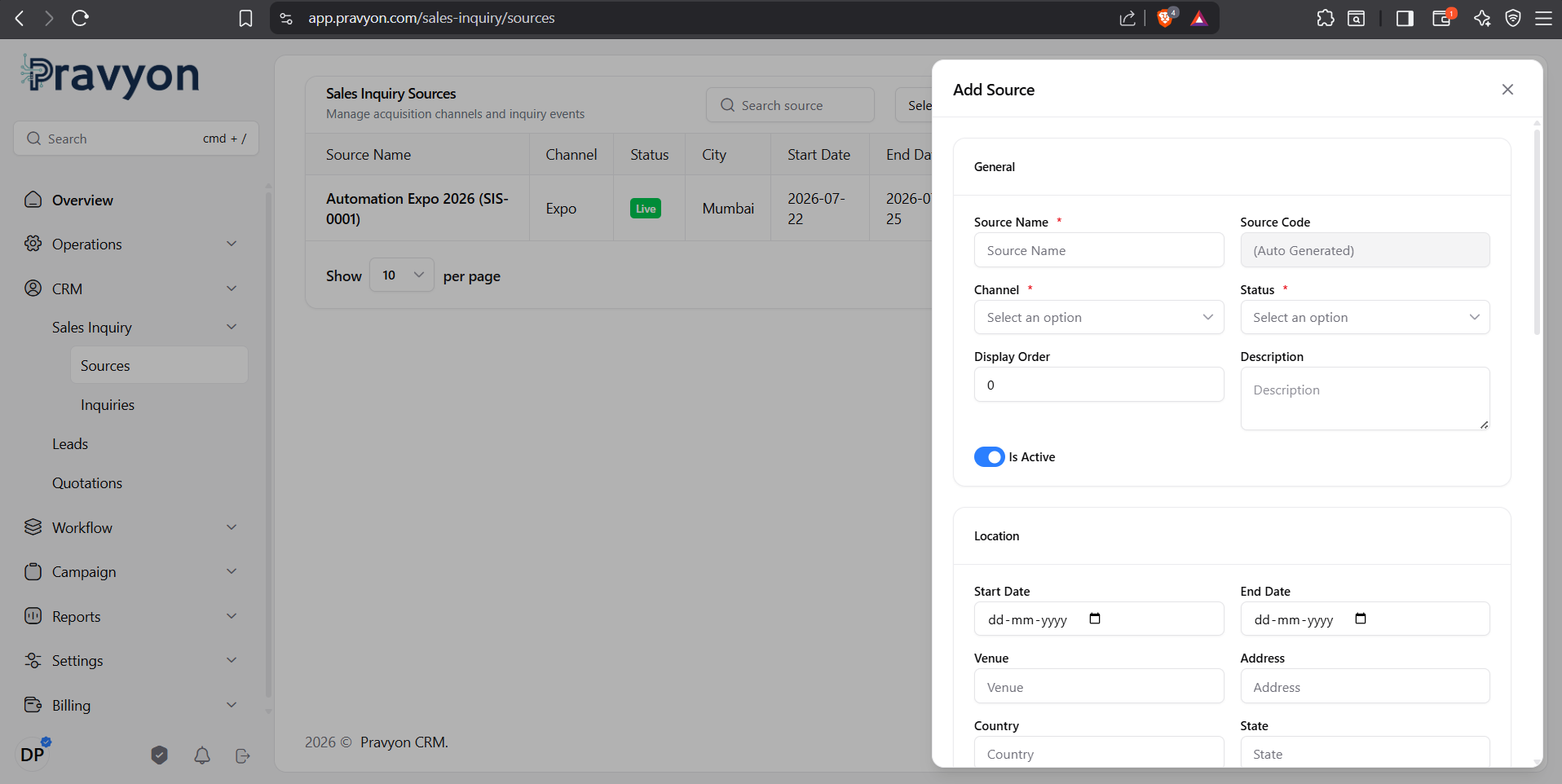
Form Details & Configuration Sections:
-
General Section:
- Source Name *: Unique name for the source or event.
- Source Code: Auto-generated tracking code (e.g.,SIS-0001).
- Channel *: Select acquisition type (Expo, Website, Social Media, IndiaMART, WhatsApp, etc.).
- Status *: Current status (Draft, Upcoming, Live, Completed, Cancelled, Archived).
- Display Order: Numeric order for dropdown positioning.
- Description: Free-text overview of the marketing campaign or exhibition goals.
- Is Active Switch: Master toggle to enable or disable the source. -
Location & Schedule Section:
- Start Date & End Date: Date pickers defining event duration.
- Venue & Address: Detailed location info for trade shows or meets.
- Country, State & City: Geographical classification. -
User & Team Assignment Section:
- Assign designated sales representatives to the source.
- Specify assignment roles or designations.
- Check Is Team Leader to assign team supervisory responsibility. -
Mobile & Capture Control Toggles:
- Allow Mobile Synchronization: Enable to allow field staff to log inquiries under this source via the mobile app.
- Allow Inquiry Capture: Master switch enabling inquiry entry for this source.
Source Actions (View, Edit, Archive, Delete)
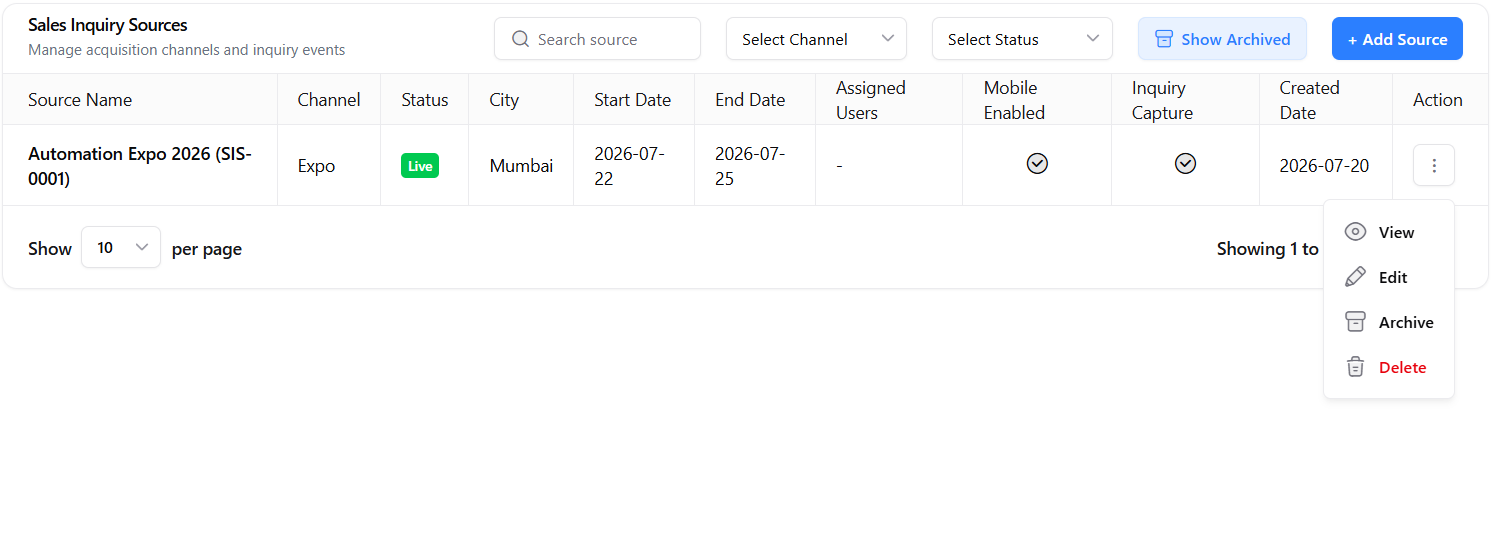
- View: Opens the detailed Source Profile modal showing overview metrics, location details, assigned team members, and performance statistics.
- Edit: Re-opens the configuration drawer to modify event details, update status to Live or Completed, or reassign team members.
- Archive: Hides completed or inactive sources from the main active listing while preserving full historical inquiry records.
- Delete: Soft deletes the source record after user confirmation.
Sales Inquiry List (Web Application)
The Sales Inquiry List presents a structured overview of all incoming customer inquiries in real time.
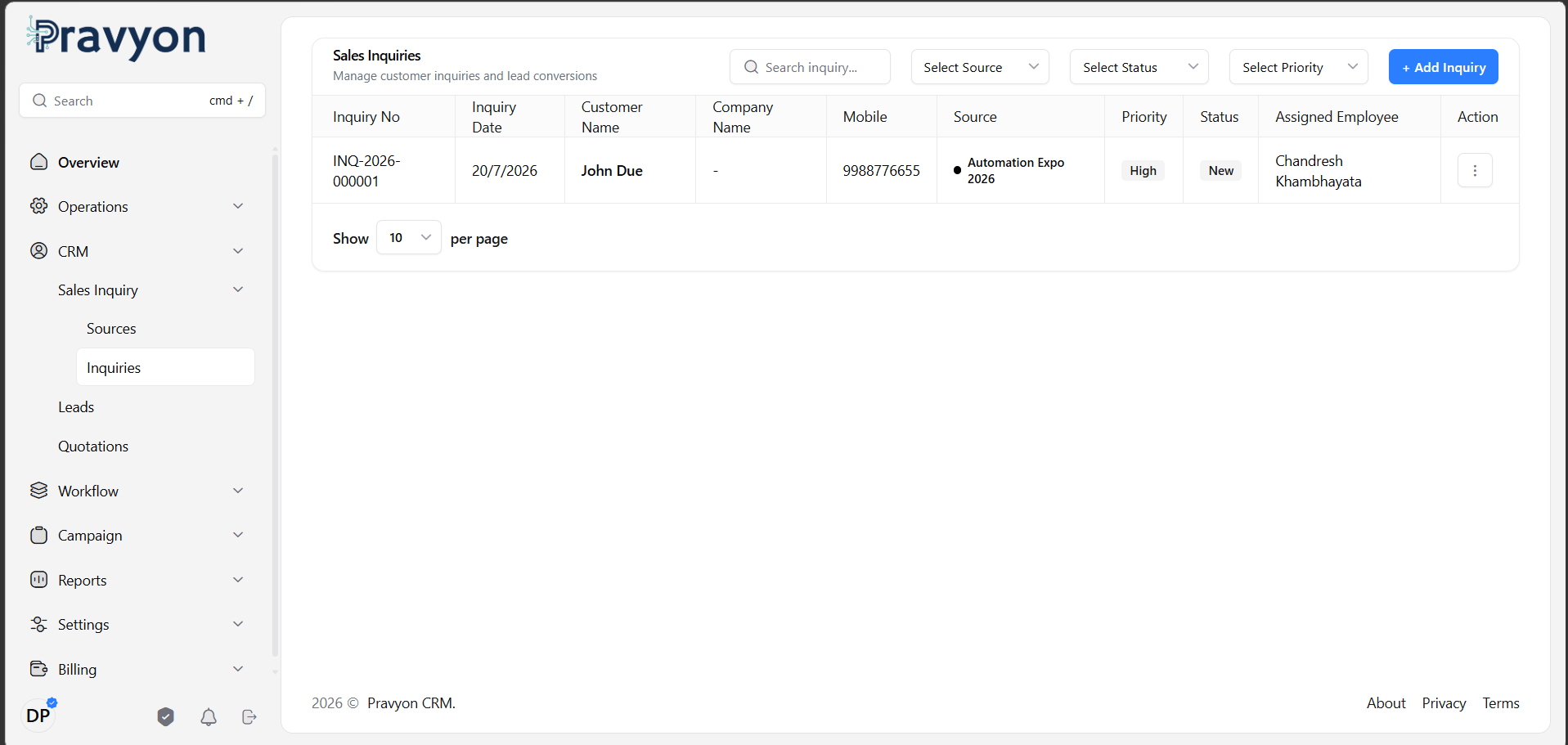
Information Displayed in the List
-
Inquiry No: System-generated unique tracking number (e.g.,
INQ-2026-0001). - Inquiry Date: Date and time when the inquiry was logged into the system.
- Customer Name & Company: Name of the prospective customer and their organization.
- Mobile & Contact Details: Primary phone number, alternate number, and email.
- Acquisition Source: Channel through which the inquiry was acquired (e.g., Expo, IndiaMART, WhatsApp, Walk-in).
- Assigned Employee: Sales representative responsible for handling the inquiry.
- Priority Badge: Visual priority tag (High, Medium, Low).
- Status Badge: Current stage of the inquiry (New, Contacted, Qualified, Converted, Lost, Closed, Archived).
- Action Menu: Dropdown 3-dots menu button () providing quick access to View Details, Edit Inquiry, Convert to Lead, Archive/Unarchive, or Delete.
Search & Filtering Options
Quickly locate specific inquiries using flexible search parameters and multi-criteria filters.
- Keyword Search: Type customer name, company, mobile number, email, or inquiry number into the search bar for instant filtering.
- Source Filter: Filter inquiries by specific channels such as Website, Expo, Facebook, IndiaMART, WhatsApp, Referral, or Walk-in.
- Status Filter: Select specific record statuses such as New, Contacted, Qualified, Converted, or Lost.
- Priority Filter: Filter by urgency level (High, Medium, or Low priority).
- Assigned Executive Filter: View inquiries assigned to a specific team member.
- Archived View Toggle: Switch between Active inquiries and Archived inquiries.
Creating a New Sales Inquiry (Web Application)
Click the + Add Inquiry button at the top right of the inquiry page to launch the entry drawer form.
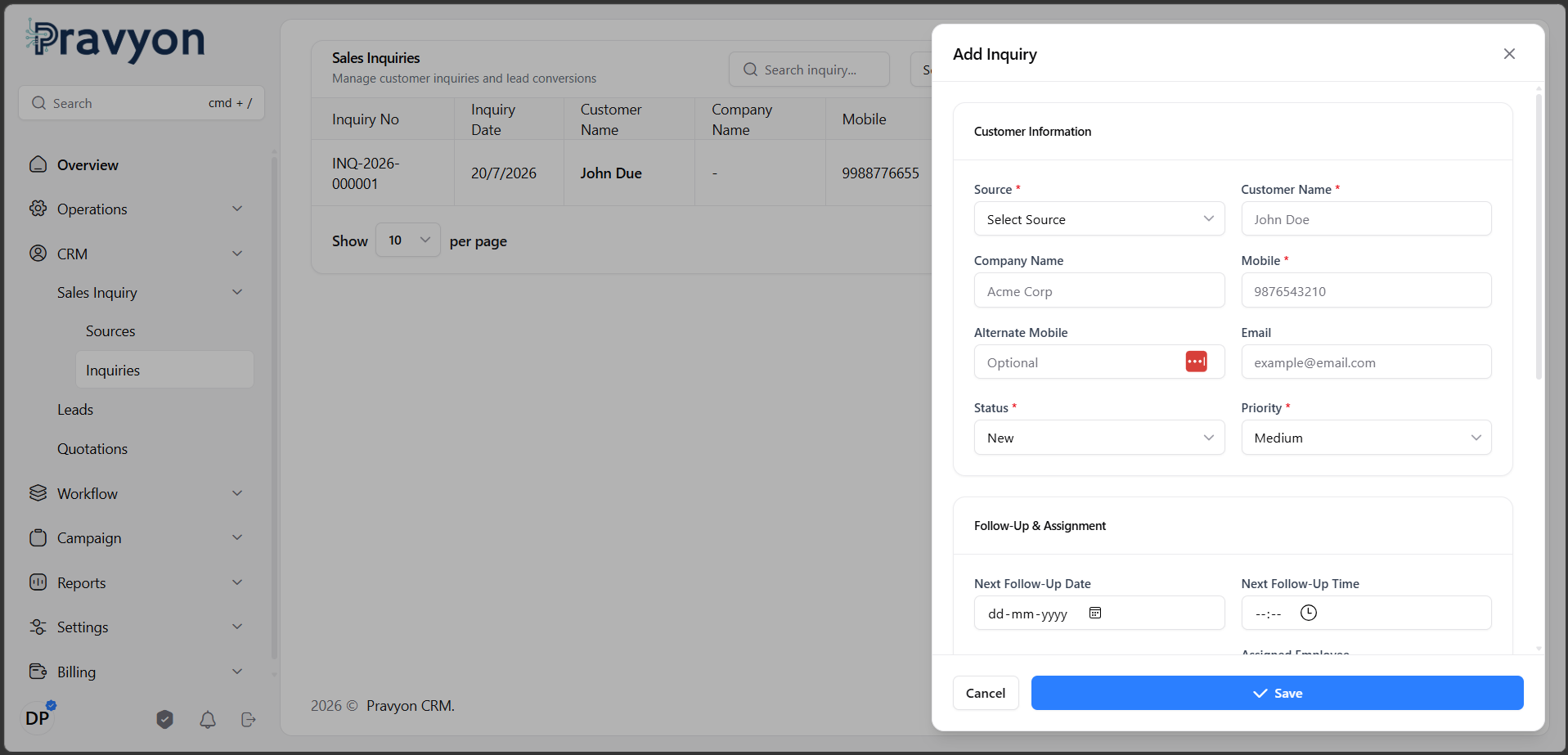
Required & Optional Form Fields
-
Customer Name *:
Enter the full name of the customer inquiring about your products or services. -
Mobile Number *:
Provide a valid primary mobile number for phone calls and WhatsApp communication. -
Inquiry Source *:
Select how the customer reached out (e.g., Expo, Website, Google Ads, IndiaMART, WhatsApp, Referral). -
Priority *:
Set the priority level (High, Medium, Low) based on customer urgency or order value potential. -
Status *:
Set the initial status (defaults to New). -
Company Name & Contact Details:
Specify organization name, alternate mobile number, email address, country, state, city, and full street address. -
Assigned Employee:
Assign a specific sales representative to take immediate ownership of the inquiry. -
Remarks:
Add detailed notes outlining specific customer requirements, project details, or preliminary estimates.
Editing & Updating Inquiries
To modify an existing inquiry, click the 3-dots action menu on the inquiry item and select Edit.
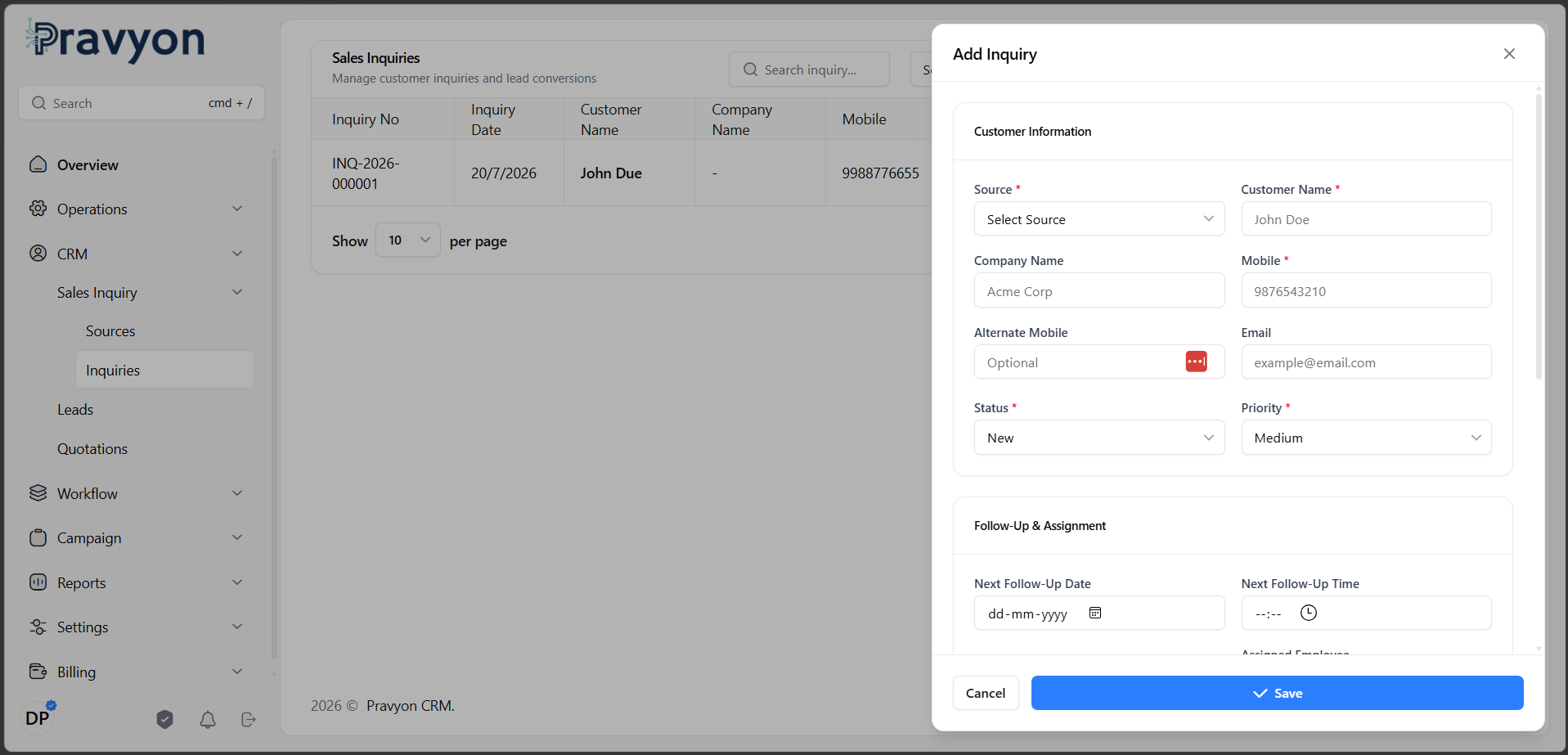
During editing, you can update customer contact details, reassign the inquiry to another representative, elevate priority, update status as conversations progress, or add/remove interested product items.
Inquiry Status Lifecycle & Lead Conversion
Inquiries progress through standard lifecycle stages to help track conversion efficiency:
- New: Fresh inquiry received and awaiting initial contact.
- Contacted: Sales executive has communicated with the prospect.
- Qualified: Customer interest and requirements confirmed. Ready for conversion.
- Converted: Inquiry successfully transformed into an active CRM Lead.
- Lost: Prospect decided not to proceed or selected another provider.
- Closed: Completed inquiry cycle.
- Archived: Inactive record stored for record-keeping.
Converting Inquiry to a CRM Lead
When an inquiry reaches the Qualified stage, click Convert to Lead from the 3-dots action menu.
The system automatically creates a formal Lead record in the CRM, pre-populating customer contact details, associated product items, and remarks. The original inquiry status updates to Converted with a direct link to the newly generated Lead ID.
Scheduling Follow-ups & Reminders
Never miss a prospect callback by scheduling follow-up activities directly within the inquiry form.
- Next Follow-Up Date: Pick the target date for the next communication or site visit.
- Next Follow-Up Time: Specify the exact scheduled time for the callback.
- Follow-Up Reminder Toggle: Enable the reminder switch to receive automatic pop-up alerts and push notifications prior to the scheduled follow-up time.
Product Information Selection
Attach specific catalog items to an inquiry under the Products Selection section.
- Select catalog products from the product lookup list.
- Specify requested quantity for each selected product item.
- Add custom item notes (e.g., custom dimensions, material grade, or color preferences).
- Arrange items in preferred display order.
Activity Notes & Team Tagging
Collaborate efficiently with team members using integrated discussion notes on each inquiry.
- Log Notes: Record meeting minutes, phone call highlights, or special customer requests.
-
Employee @Mentions: Tag colleagues or supervisors using
@EmployeeNameto notify them instantly regarding urgent inquiry updates. - Document Attachments: Attach customer design drawings, site photos, or requirements documents to the inquiry detail view.
Pravyon Mobile Application & Field Sales
The Pravyon Mobile App empowers field sales representatives and exhibition staff to log, track, and manage customer inquiries directly on mobile devices—both online and offline.

Home Dashboard

Sales Inquiries Card & Quick Actions
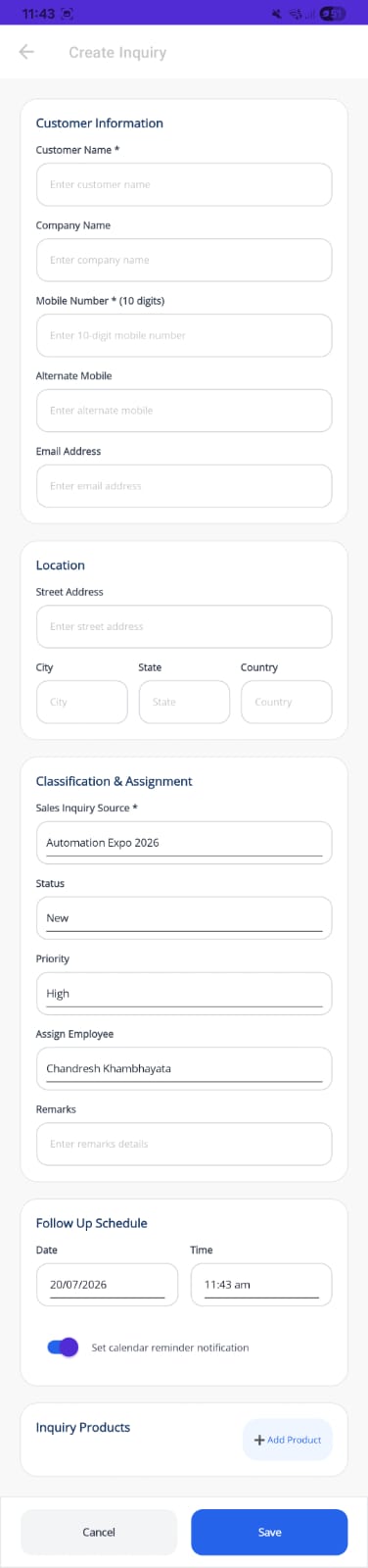
Create Inquiry Form
Mobile Dashboard Access & Navigation
From the Pravyon Mobile Home screen, view real-time counts under the Sales Inquiries metric card and tap the arrow button (âž”) to launch the Mobile Sales Inquiries list.
Mobile Sales Inquiries List & Quick Action Cards
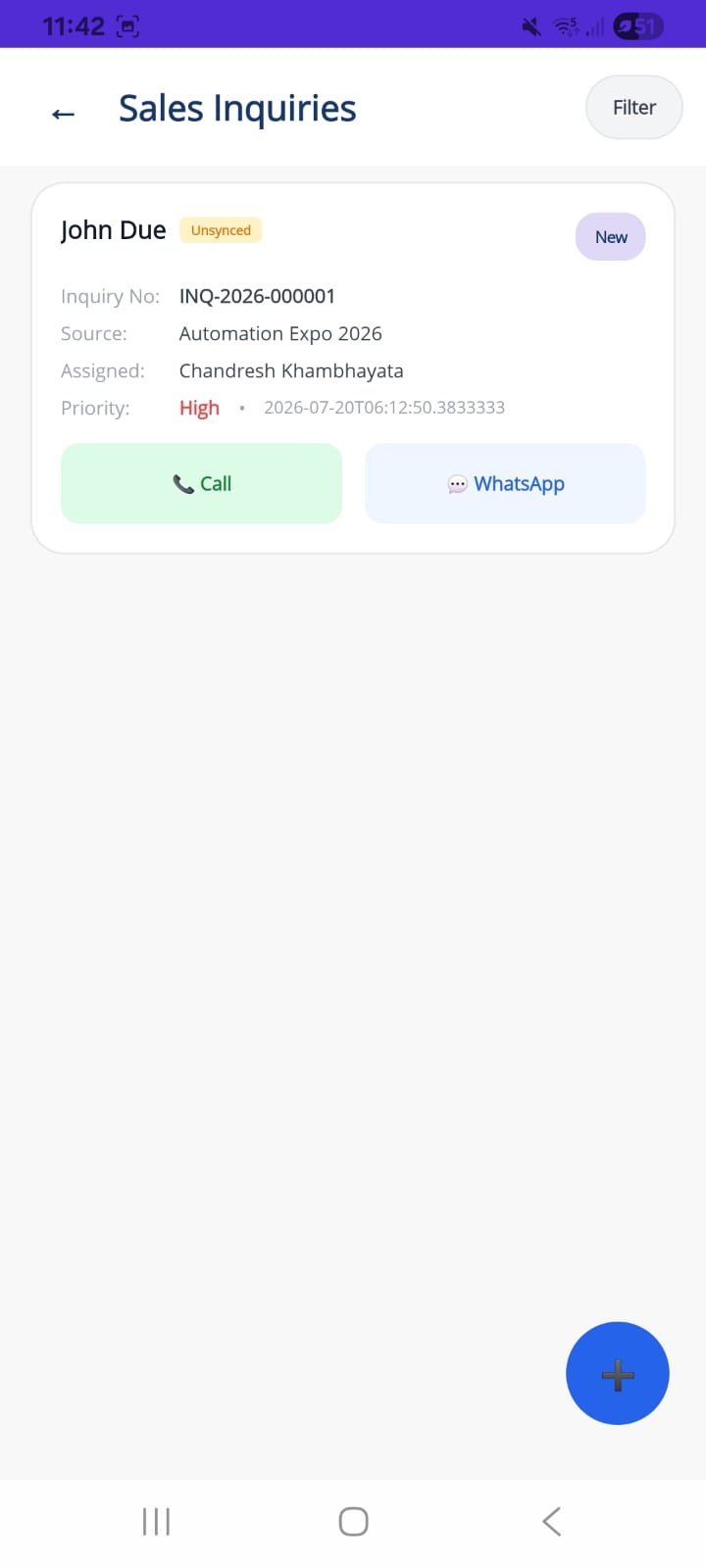
The mobile list presents each inquiry as a clean, touch-friendly card with key details and one-tap action buttons:
-
Customer Name & Status: Displays customer name alongside current status badge (e.g.,
New,Contacted,Qualified). -
Sync Status Badge: Visual indicator badge showing
Unsynced(yellow badge for offline/locally stored inquiries awaiting server upload) orSynced. -
Inquiry Details: Displays auto-generated Inquiry No (e.g.,
INQ-2026-000001), Source name (e.g.,Automation Expo 2026), Assigned Employee, Priority level (e.g.,High), and exact creation timestamp. -
One-Tap Quick Actions:
-📞 CallButton: Instantly dials the customer's mobile number using the device's native phone dialer.
-💬 WhatsAppButton: Opens a direct WhatsApp conversation pre-populated with customer contact info. - Floating Action Button (+ FAB): Blue circular + button at the bottom right to launch the Mobile Create Inquiry form instantly.
- Top Filter Button: Filter inquiries by status, priority, or source directly on mobile.
Creating an Inquiry on Mobile (Form Details)
Tapping the blue + FAB opens the Create Inquiry mobile form structured into five clear sections:
-
1. Customer Information:
- Customer Name *: Enter full customer name.
- Company Name: Enter customer company name.
- Mobile Number * (10 digits): Primary contact mobile number.
- Alternate Mobile: Secondary contact number.
- Email Address: Customer email contact. -
2. Location:
- Street Address: Enter street address.
- City, State & Country: Geographical classification inputs. -
3. Classification & Assignment:
- Sales Inquiry Source *: Select active source from dropdown (e.g.,Automation Expo 2026).
- Status: Select status (defaults toNew).
- Priority: Select priority level (e.g.,High,Medium,Low).
- Assign Employee: Select designated sales executive.
- Remarks: Enter detailed requirement notes or discussion highlights. -
4. Follow Up Schedule:
- Date: Date picker for follow-up callback (e.g.,20/07/2026).
- Time: Time picker for precise appointment scheduling (e.g.,11:43 am).
- Set calendar reminder notification toggle: Enable automatic calendar reminder notifications on mobile. -
5. Inquiry Products & Actions:
- + Add Product Button: Select catalog products requested by customer.
- Bottom Action Buttons: Cancel to discard or Save (blue button) to record inquiry.
Offline Mode & Local Storage
When field executives operate in areas with poor or no internet coverage (e.g., basement sites, remote industrial zones, crowded trade expos), the Pravyon Mobile App seamlessly switches to Offline Mode.
-
Local Storage: Inquiries recorded offline are assigned a unique local reference ID (
MobileReferenceId) and stored securely in local device storage. -
Unsynced Badge: Offline inquiries are tagged with a yellow
Unsyncedbadge and displayed clearly in the mobile inquiry queue. -
Uninterrupted Work: Sales representatives can continue capturing new inquiries and using
Call/WhatsAppquick actions without any connection errors.
Automatic Synchronization
Once cellular data or Wi-Fi connectivity is restored, the Pravyon Mobile App automatically synchronizes all pending offline inquiries in the background.
- Background Execution: The mobile background sync engine detects network restoration and uploads pending records seamlessly.
-
Cloud Registration: The server validates data, generates official system inquiry numbers (
InquiryNo), updates the badge fromUnsyncedtoSynced, and recordsSyncedDate. -
Duplicate Prevention: Idempotent server processing using
MobileReferenceIdensures no duplicate inquiries are created even if sync retries occur.
Best Practices for Sales Teams
- Log inquiries immediately upon customer interaction to avoid memory gaps.
- Always select the accurate acquisition source to maintain clean marketing analytics.
- Assign every inquiry to a dedicated team member for accountability.
- Set precise follow-up dates and enable reminders for every open inquiry.
- Check the mobile pending sync queue at the end of each field day.
- Convert qualified inquiries to CRM Leads promptly to initiate quoting.
Frequently Asked Questions (FAQ)
Converting an inquiry automatically creates a new CRM Lead pre-filled with customer contact details, interested products, and remarks. The inquiry status updates to "Converted" with a cross-reference link to the new Lead ID.
Yes. The mobile app automatically stores offline inquiries locally on the device with an Unsynced status and syncs them automatically when internet connectivity returns.
Each offline entry receives a unique local MobileReferenceId. Upon synchronization, the cloud server checks for existing records with the same reference ID, ensuring zero duplicates.
No. Sales Inquiry Sources (channels, expos, campaigns) can only be created and configured via the Web Application. Mobile app users can select active mobile-enabled sources when logging inquiries.
Yes. You can select multiple products from your catalog, specify quantities, and add custom notes for each item within the Products Selection tab.
Troubleshooting Common Issues
-
Source Not Appearing in Mobile App Selection:
Ensure the source has Allow Mobile Synchronization enabled and its status is set to Live or Upcoming. -
Pending Mobile Inquiries Not Syncing:
Verify active internet connection (Wi-Fi or Mobile Data). Open Mobile Settings → Tap "Sync Now" to force manual upload. Ensure background app refresh permissions are enabled. -
Unable to Convert Inquiry to Lead:
Ensure your user role has the required permissionSalesInquiry.Inquiry.ConvertLead. Also check if the inquiry is already marked as Converted or Archived. -
Inquiry Not Visible in List:
Clear active search filters, verify the status/source filter selections, and check if the Show Archived toggle is enabled.
Summary
The Sales Inquiry module streamlines customer lead acquisition across Web and Mobile applications. By managing acquisition sources on the Web Application, enabling offline field entry on Mobile, automatic cloud synchronization, priority management, follow-up reminders, and seamless lead conversion, Pravyon CRM helps sales teams capture every opportunity and close deals faster.
Related Documentation
WhatsApp Business Integration
Connect your WhatsApp Business account with Pravyon to send quotations, invoices, notifications, and customer updates directly from CRM.
IndiaMART Integration
Connect your IndiaMART account with Pravyon to automatically import inquiries and manage leads inside CRM.
Lead Notes and User Tagging
Add notes, reminders, and tag employees in lead notes. Tagged employees will receive dashboard and WhatsApp notifications.
Manage Leads
View and manage all your leads in one place. You can filter leads, update status, assign to employee, send quotation, and track notes and follow-ups.